Home Assistant + DejaView
A private photo display for Home Assistant.
Turn any Home Assistant dashboard into a photo frame fed by your own Apple Photos — no cloud, no public share links. DejaView streams your albums straight from your Mac over your local network, and a Generic Camera entity puts them on the wall.
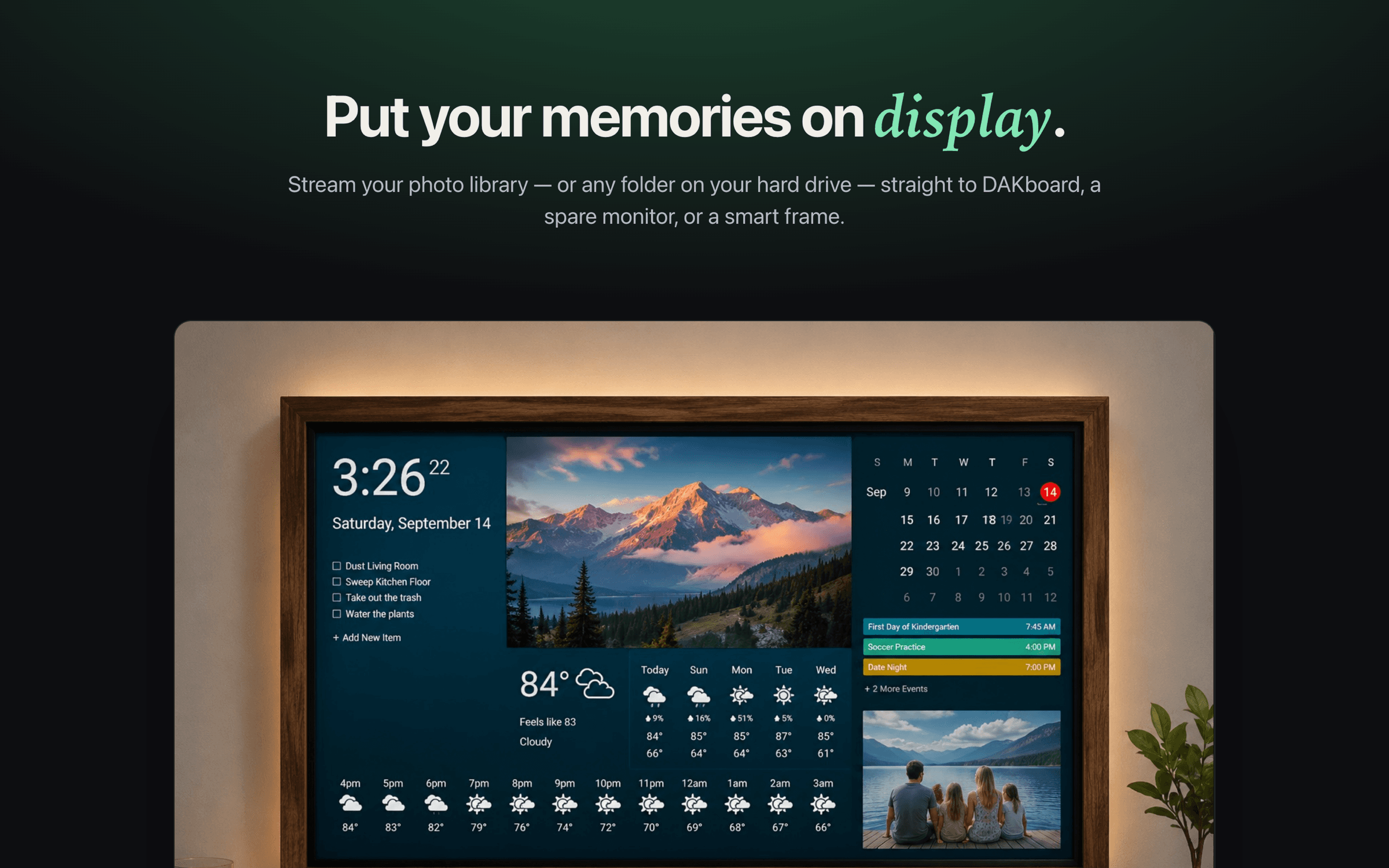
Why local
Your photos belong on your own network — not someone else's cloud.
Home Assistant already runs your home locally — so why route your family photos through a third-party cloud, a public iCloud share link, or a frame vendor's servers just to get them on a dashboard? Those routes expose private moments and put them out of your control.
DejaView keeps everything on your own network. It runs quietly in your Mac's menu bar and serves your chosen albums to a Home Assistant camera entity over your local network — read-only, no uploads, no account, no public links.
Step by step
From Apple Photos to your dashboard in five steps.
- 1
Install DejaView and pick a photo source
Download DejaView free from the Mac App Store. Grant read-only access to Apple Photos, then choose one or more albums — including smart and shared albums — or point it at any folder on your Mac.
- 2
Copy the stream URL
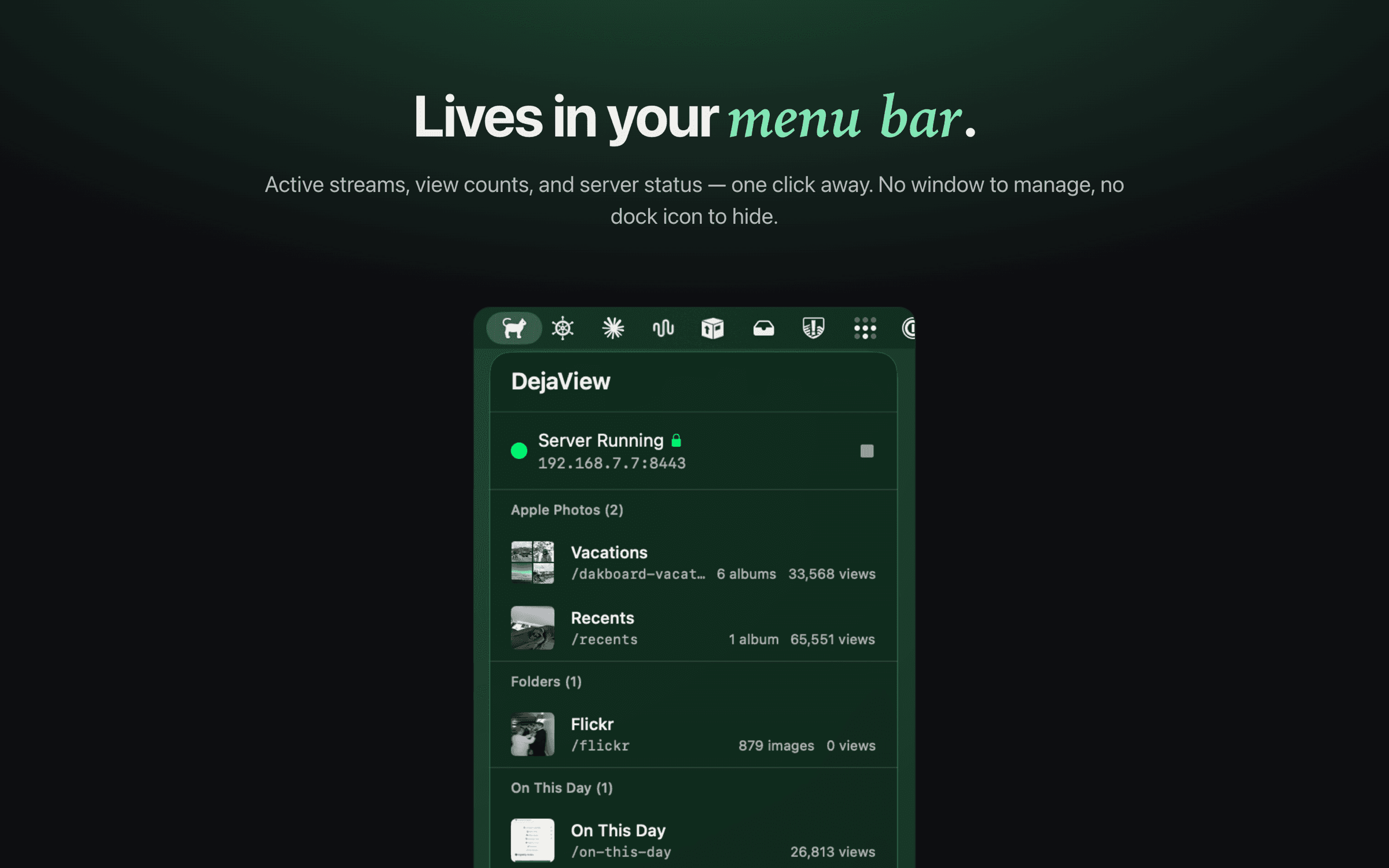
DejaView runs a small server in your menu bar and gives each stream a local-network URL — its Endpoint URL. Copy it with one click. Nothing is uploaded anywhere; the photos are served straight from your Mac, read-only.
- 3
Add a Generic Camera in configuration.yaml
In Home Assistant, define a Generic Camera entity whose still_image_url points at your DejaView Endpoint URL. DejaView serves over HTTPS with a self-signed certificate by default (port 8443), so add verify_ssl: false. Home Assistant then fetches a fresh photo from your Mac each time it refreshes the camera image.
- 4
Add a Picture or Picture Entity card to your dashboard
Open your Lovelace dashboard, add a Picture Entity (or Picture) card, and select the new camera entity. Your dashboard now shows photos pulled live from your Mac.
- 5
Done — your memories on the wall panel
Mount the dashboard on a tablet or wall panel (Fully Kiosk, the Home Assistant Companion app, or any browser) and your Apple Photos rotate on display. Add new photos in Apple Photos and they appear automatically.
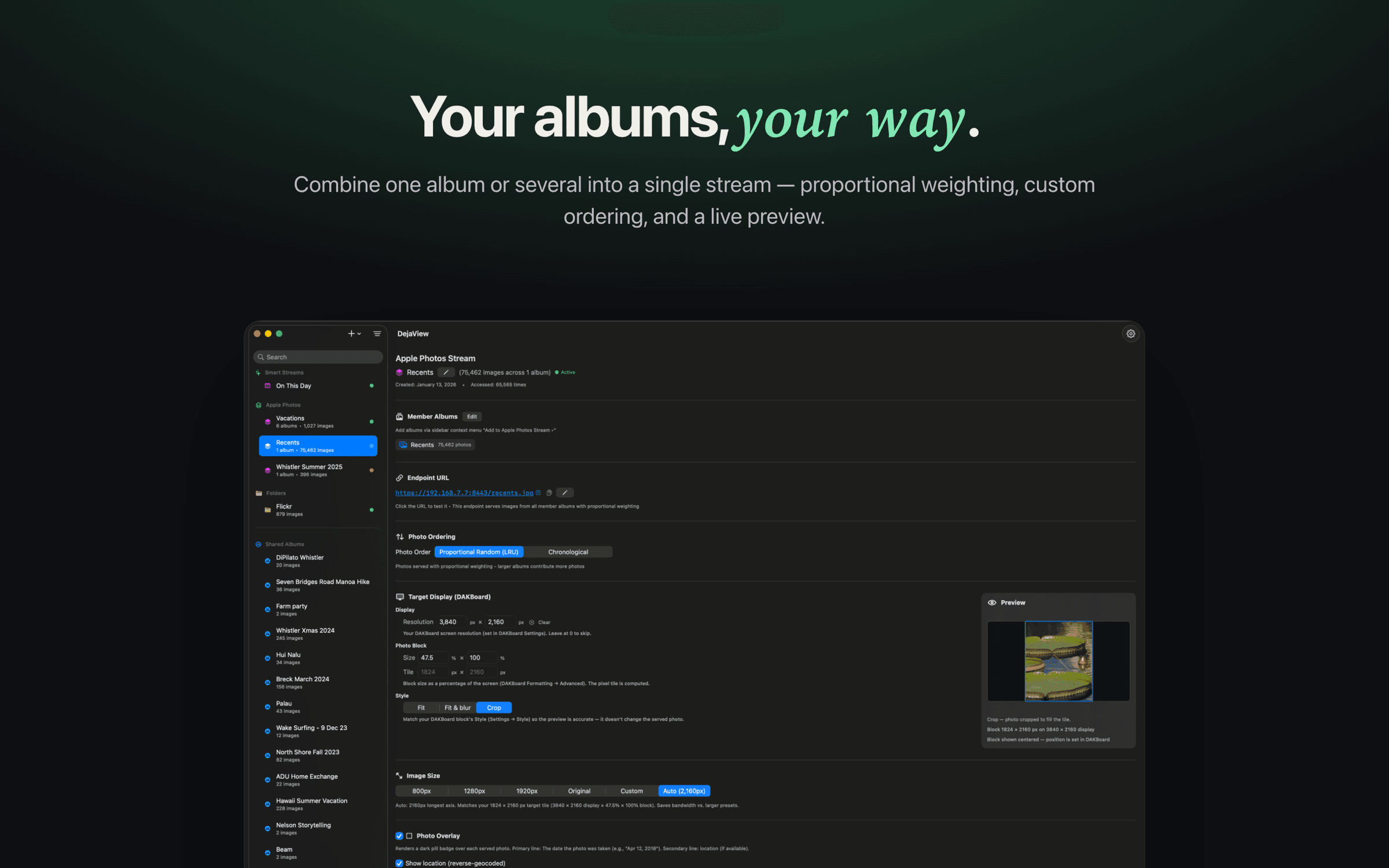
Generic Camera entity (Step 3) — paste your DejaView Endpoint URL into still_image_url:
# configuration.yaml
camera:
  - platform: generic
    name: Family Photos
    still_image_url: "https://192.168.1.42:8443/family.jpg"
    verify_ssl: false   # DejaView uses a self-signed HTTPS cert by default
    # ^ Paste your DejaView stream's Endpoint URL here
Save the file and restart Home Assistant (or reload the camera integration). Recent Home Assistant versions import this YAML into a Generic Camera config entry the first time it loads.
FAQ
Home Assistant + DejaView, answered.
Does it work with a wall panel or Fully Kiosk?
Yes. The photos live in a normal Home Assistant dashboard, so any display that shows your dashboard works — a tablet running Fully Kiosk Browser, the Home Assistant Companion app, or any browser pointed at your dashboard URL. DejaView just supplies the images to the camera entity behind it.
Do the photos update automatically?
Yes. Home Assistant periodically re-fetches the still image from your DejaView Endpoint URL, and DejaView serves a new photo from your album on each request. Add or remove photos in Apple Photos and the rotation reflects it — no re-importing, ever.
Is anything uploaded to the cloud?
No. DejaView serves your photos directly from your Mac over your local network. They are never uploaded to DejaView, Home Assistant, or any cloud service. Your Mac just needs to be on and on the same network as the device running Home Assistant.
Which Home Assistant card should I use?
A Picture Entity card is the simplest — point it at the camera entity DejaView feeds and it fills the card with the current photo. A Picture Glance or a plain Picture card work too. For a full-screen slideshow, give the camera card its own view and open it on your wall panel.
Can I show more than one album?
Yes. Run a separate DejaView stream for each album — each gets its own Endpoint URL — and add a Generic Camera entity per stream. Then place each on its own card or view. You can also combine several albums into one weighted stream, or use the built-in On This Day stream to resurface past photos.
Is DejaView affiliated with Home Assistant?
No. DejaView is an independent macOS app that gives Home Assistant a private, local photo source. Home Assistant is a trademark of the Open Home Foundation; Apple and Apple Photos are trademarks of Apple Inc. DejaView is not affiliated with either.
Give your Home Assistant dashboard a private photo source.
Download DejaView free from the Mac App Store and put your Apple Photos on a Home Assistant dashboard in minutes — no cloud, no account.